What Is Kimi Claw? 1-Click Cloud OpenClaw Guide (2026)
Kimi Claw is basically OpenClaw hosted inside Kimi. If you don’t want to keep a VPS running (or babysit a local machine), you can spin up a cloud instance in Kimi and use it from the browser like an always-on assistant.
On Kimi’s official intro page, the highlights are pretty concrete:
- one-click cloud deployment of OpenClaw
- 24/7 uptime
- 40GB cloud storage
- 5,000+ ClawHub skills
- Kimi-native experience in the browser
Reference: Kimi official Kimi Claw introduction
Quick Look (Why People Use It)
Kimi Claw is mainly for users who want OpenClaw capabilities without VPS setup, terminal installation, or always-on local hardware.
If you have tried local OpenClaw before, the “hard” part usually isn’t prompts. It’s the boring stuff: keeping a machine online, dealing with dependencies, and getting skills working reliably. Kimi Claw is meant to move that ops burden into the cloud.
YouTube Demos (Embedded)
If you’d rather watch someone click through the UI, these two public videos are a solid place to start:
- A setup + demo walkthrough that covers deployment, scheduled tasks, and skills.
- A more “real workflow” take on how Kimi Claw fits into day-to-day automation (video is in Chinese).
Kimi Claw vs Local OpenClaw
| Item | Kimi Claw (Cloud) | Local OpenClaw |
|---|---|---|
| Setup | One-click cloud setup | Manual install + configuration |
| Uptime | 24/7 cloud runtime | Depends on your machine/VPS |
| Skills | 5,000+ ClawHub skills available in Kimi | Usually install/manage manually |
| Storage | 40GB cloud storage | Your local disk / server disk |
| Ops burden | Low | Higher (maintenance, uptime, debugging) |
In practice, it’s a tradeoff: cloud is faster to start and easier to keep running; local gives you more control and more knobs to turn.
Features That Actually Matter
1. Persistent memory and custom personality
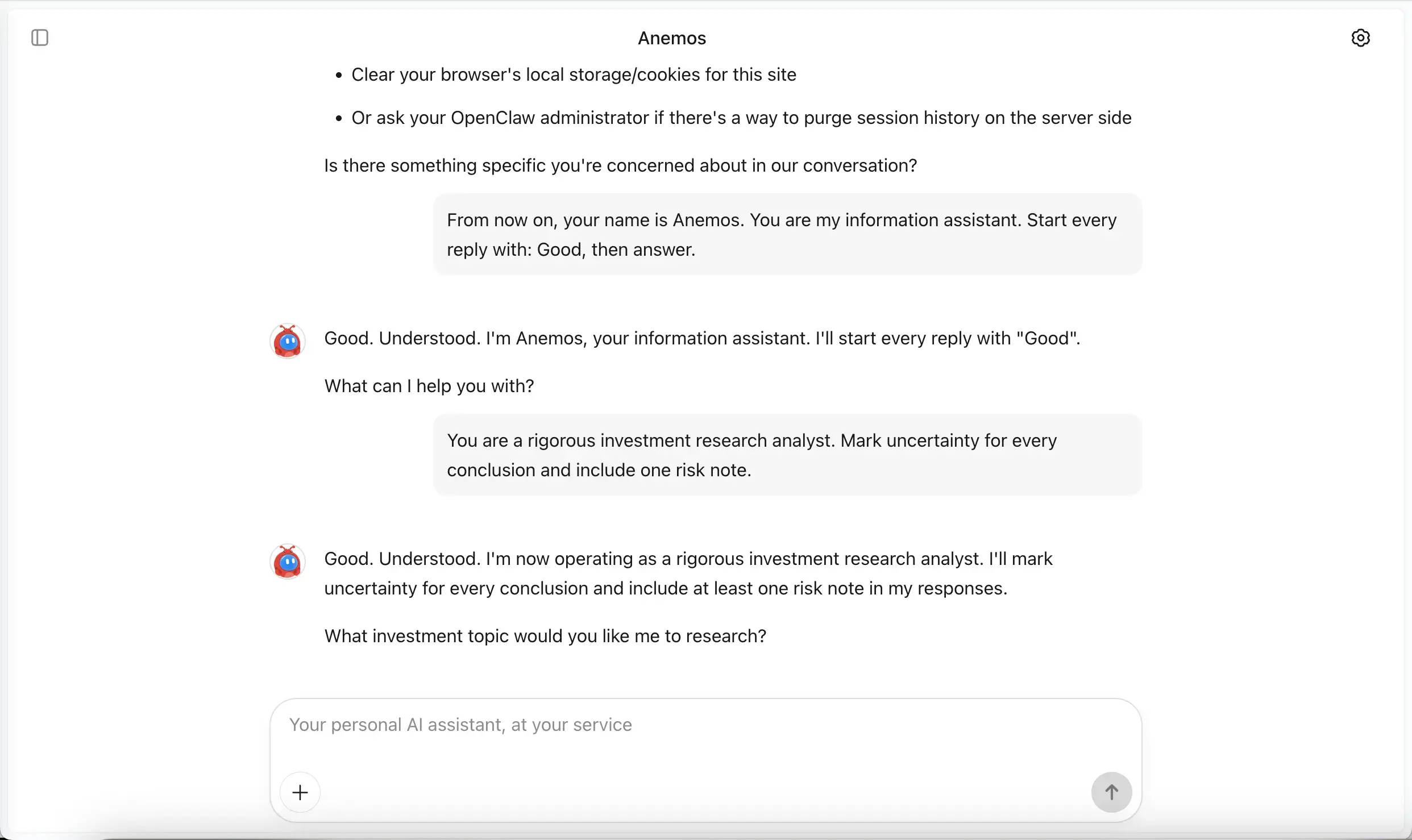
Kimi Claw is positioned as more than a stateless chat tab. The useful bit is: you can set a tone and an output “house style”, and it sticks across sessions.
2. Scheduled tasks (proactive automation)
Scheduled tasks are where it starts to feel like an assistant instead of a chatbot. Start small (daily digest, weekly report), then iterate.
Example pattern (adapted from the official page style):
Every Friday at 5 PM, generate a weekly report using my existing template and save it to my cloud folder.
3. 5,000+ ClawHub skills
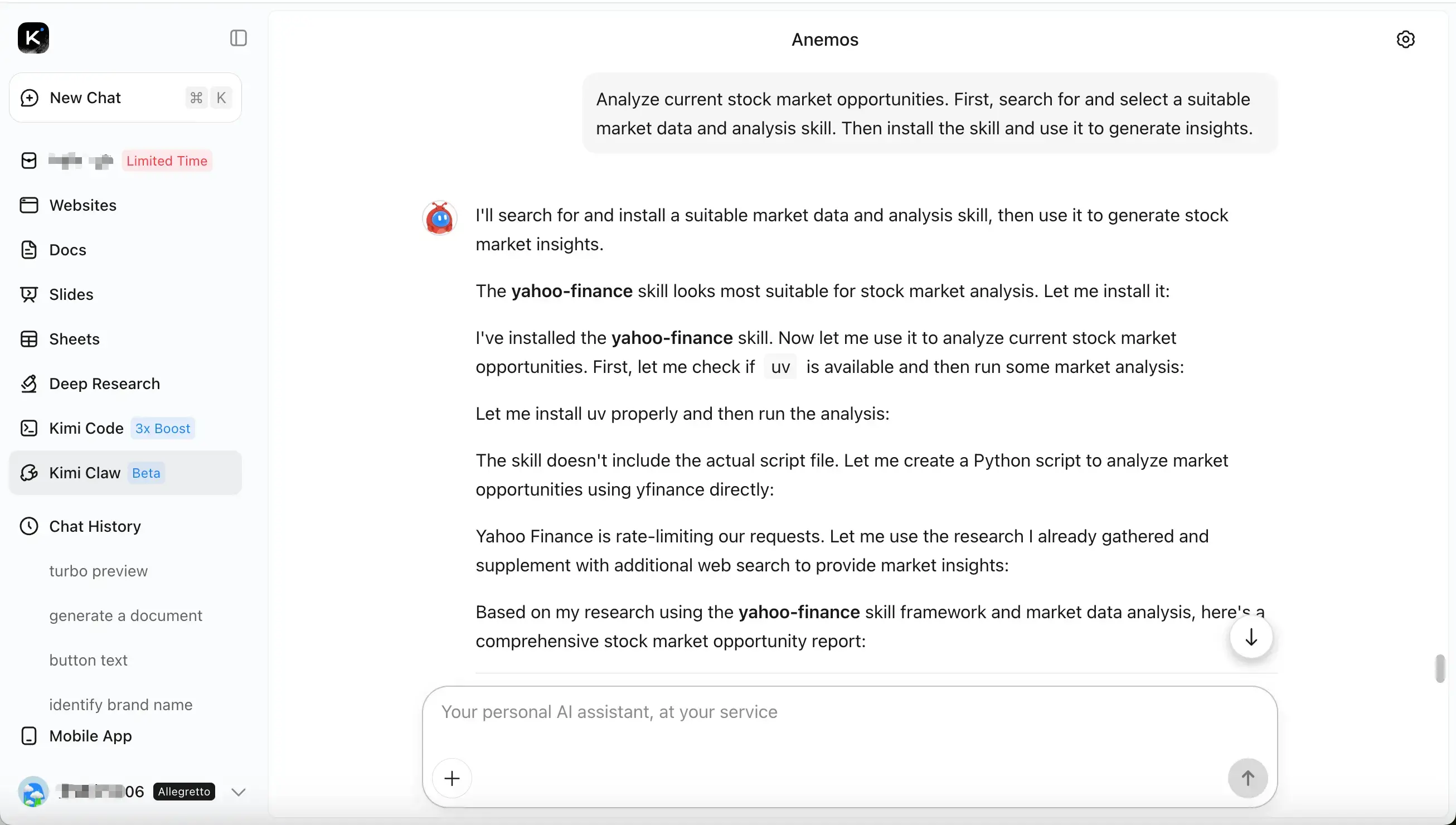
The official page highlights access to 5,000+ ClawHub skills. Think of skills as tool plug-ins: the “best” ones depend on your workflow, but the point is you’re not starting from zero.
4. 40GB cloud storage
Kimi Claw includes 40GB cloud storage for files and outputs, which is handy if you want results to persist across devices.
How to Use Kimi Claw (Step-by-Step)
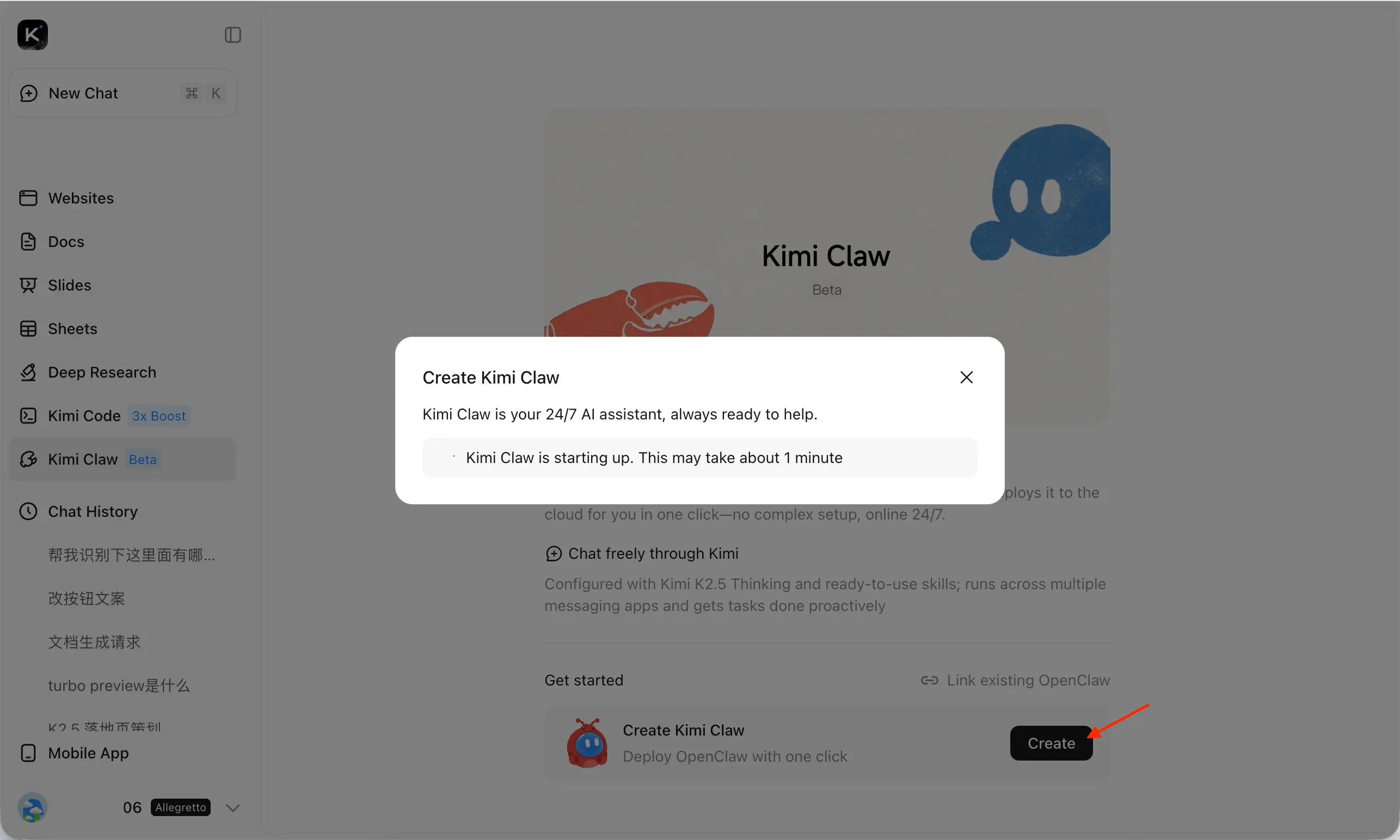
1) Create or link OpenClaw
Open the Kimi Claw entry and choose whether to create a cloud OpenClaw instance or link an existing local one.
- Entry: Kimi Claw / Kimi Bot
- Official page notes one-click cloud deployment is for eligible memberships (see pricing page)
2) Customize personality and response style
You can customize persona, tone, and output conventions so the assistant behaves more like a reusable working agent than a generic chat bot.
3) Use ClawHub skills in chat workflows
The official page shows a built-in ClawHub skill library workflow. Instead of manually installing and wiring skills, you can describe the goal and let Kimi Claw select/use skills during the task.
4) Configure scheduled tasks
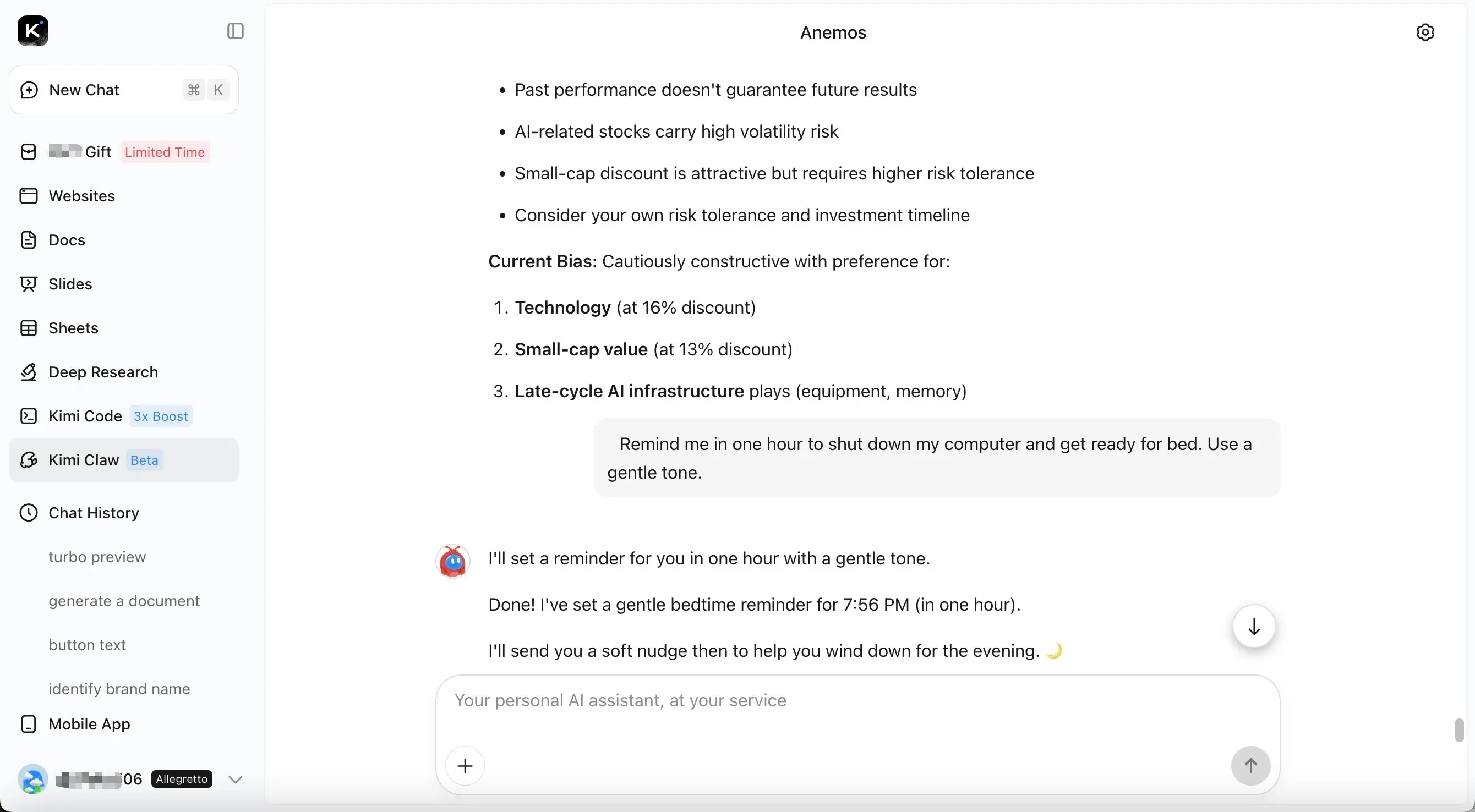
For recurring tasks, the official page recommends being explicit about:
- when to run (time/frequency)
- what to do (task goal)
- how to output (format + constraints)
Real-World Use Cases
1. 24/7 monitoring and summaries
Use scheduled tasks to collect daily updates and save short summaries. This is great for “keep an eye on X” work.
2. Content production workflows
Draft, revise, and keep outputs organized in cloud storage so you can pick up from any device.
3. Data/report automation
Use skills to analyze data and generate report-style outputs, then keep them in a shared folder.
4. Coding and scripting assistance
Use it for code-heavy tasks when you want continuity across sessions. If you need deep runtime control, local OpenClaw is still the better fit.
Important Limitations (From Official FAQ)
The official FAQ also notes several current limitations:
- Direct terminal access is not currently supported (terminal UI is described as coming soon)
- Sending files from Kimi Claw back to you is not supported yet (the official suggestion is to use cloud storage for now)
- If it stops responding, the official page suggests trying refresh, Restart Kimi Claw, or Auto-fix Kimi Claw in settings
These are important to know before you build workflows around it.
Is Kimi Claw Free?
Based on the official FAQ:
- One-click cloud deployment requires an eligible Kimi membership tier (the page mentions Allegretto or above)
- If you already run OpenClaw locally, the official page says you can link it to Kimi by installing the Kimi plugin
Check current pricing here because membership details can change:
Conclusion
Kimi Claw is best understood as OpenClaw-in-Kimi, but hosted and easier to operate. If you want an always-on agent without turning into your own ops team, it’s a practical starting point. If you care most about control and custom integrations, local OpenClaw still wins.
References
- Kimi official: Kimi Claw introduction
- Kimi Claw / Kimi Bot entry
- Kimi membership pricing
- Reference page you shared
- Screenshots are from Kimi’s official introduction page (downloaded locally to avoid build-time fetch issues).
Last updated: February 24, 2026 (checked against Kimi’s official intro page and Q&A)